Delete Journal Entries
Whether you entered a trade incorrectly, or want to remove Cancelled Orders from your Virtual or Manual Account, you have the ability to delete a Journal Entry.
Simply expand the Trade tab and click on the  icon.
icon.
If you are deleting Cancelled or Expired orders, you’ll be prompted to confirm you want to delete the entry.
For trades that have a specific Open and/or a specific Close, you’ll be prompted to choose either Selected Trade or Selected and Related Trade, if applicable.
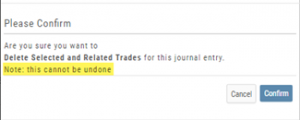
Prior to deleting your selection, you’ll be prompted to confirm the action. Once deleted, the trade cannot be restored.
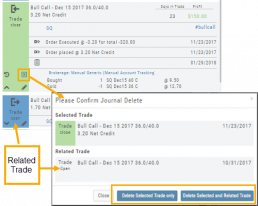
Note: Deleting a Journal entry for a Manual Account will remove the trade completely from both the Journal and Manual Account.
Deleting a Journal entry for Real or Virtual Accounts only remove the Journal entry, and the trade will remain in the account.
Account Differences Explained
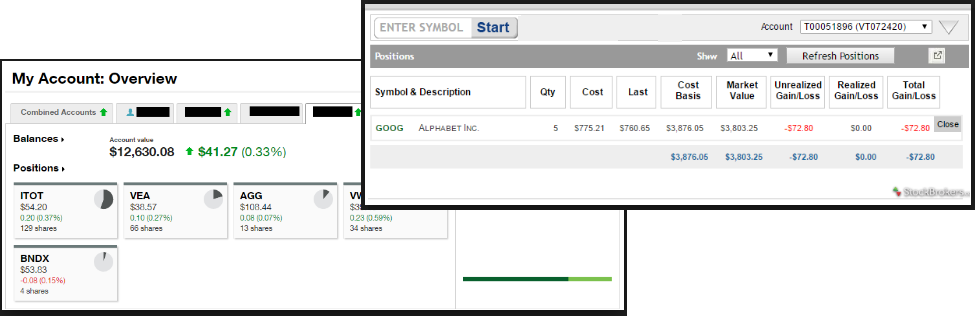
When you set up your Live Account with TD Ameritrade, Choice Trade or other Brokerage you may notice account value differences on the Positions summary tab.
The Trade Tool Positions Account Values are tied to the Bid price (if you own a stock or option) and Ask price (if you are short a stock or option). Were you to close the position, you would receive the corresponding price – or better, since you are able to try to get a better price than Bid/Ask. This method ensures you will get at least the listed value – or better.
Choice Trade Accounts can be set up to have the price shown in the Positions Summary tied to the Bid/Ask or the default, “Last Trade Price“. Last Trade Price differs from Bid/Ask in that it shows the most recent transaction price, but does not always reflect the price you will receive if you were to buy or sell the security.
TD Ameritrade ties trade values to Mark – the point between Bid and Ask. Some trades will be closed at this price, but not all. Mark does not take into account if you own or are short a position, it is simply the halfway point between the two.
Journal - Color Tagging
After Reconciling your closed trades, click “OK” to have the Journal entries updated.
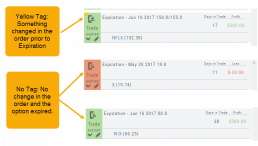
Yellow tag: There was a change in the Option position. For example, an option was exercised before expiration – or the order was adjusted.
No tag: There was no change and the Option expired worthless.
Green Tab: Profitable trade
Red Tab: Losing trade