Save Backtested Trades to Manual Account
Want to keep record of backtested trades?
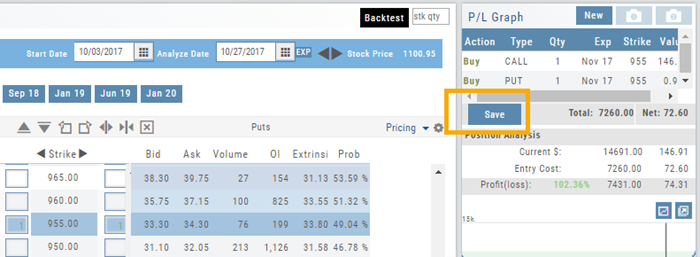
Send them to the Manual Account. While in Backtest Mode, structure your trade as usual in the Options Chain or in a Strategy Template. Then click “Save”.
The “Trade” button becomes “Save” when in Backtest Mode.
You have the option of saving the Entry or Entry and Exit of the trade. Each tab has specific information such as Total Cost when opening the trade and Total Credit (Debit) when Exiting the Trade.
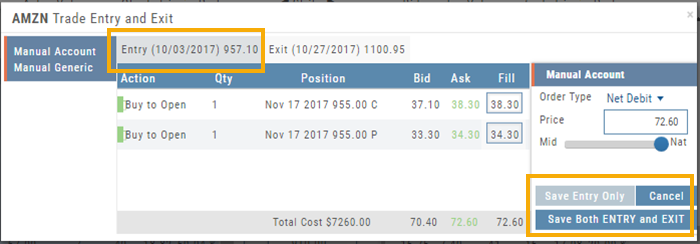
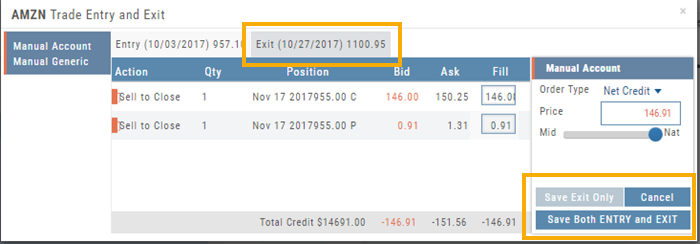
You’ll have the option to Save both the Entry and Exit positions on the “ticket”. You can also choose to save only the Entry OR Exit if you wish. So if you want to post an opening trade on a past date, but still have it open now, you can Save Entry Only on the Entry part of the Ticket.
Journal too
Once saved, you can see these trades in your Journal. You can add notes and tags. Simply click Journal in Order Status, or edit in the Journal.
Delete Journal Entries
Whether you entered a trade incorrectly, or want to remove Cancelled Orders from your Virtual or Manual Account, you have the ability to delete a Journal Entry.
Simply expand the Trade tab and click on the  icon.
icon.
If you are deleting Cancelled or Expired orders, you’ll be prompted to confirm you want to delete the entry.
For trades that have a specific Open and/or a specific Close, you’ll be prompted to choose either Selected Trade or Selected and Related Trade, if applicable.
Prior to deleting your selection, you’ll be prompted to confirm the action. Once deleted, the trade cannot be restored.
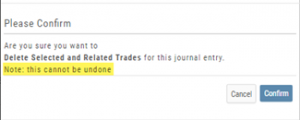
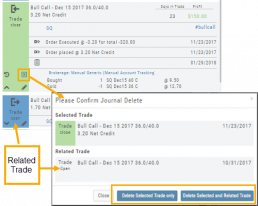
Note: Deleting a Journal entry for a Manual Account will remove the trade completely from both the Journal and Manual Account.
Deleting a Journal entry for Real or Virtual Accounts only remove the Journal entry, and the trade will remain in the account.
Other Navigation
Icons = Navigation
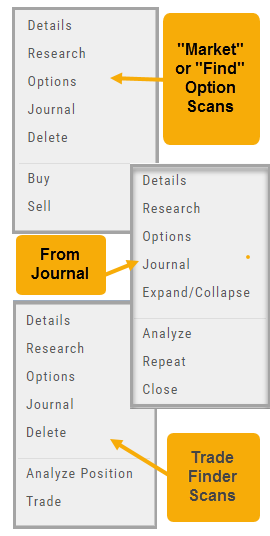
The Action (Arrow) icon will provide different actions depending on where you are in the platform. For example if you are in the Market or Find tab, ‘Detail‘ will provide a Quote Popup. ‘Research‘ will take you to the Dashboard – overview – of the stock. ‘Options‘ will take you to that part of the platform etc.
When in a “Trade Finder Scan” (identified by the  icon), the Action icon choices includes: ‘Analyze Position’ which will take you to the Options tables and/or ‘Trade’ which will lead you to the Order Ticket of the Brokerage Account from the menu.
The Action Icon is also found in the Journal. Under the “Positions” tab, clicking on the icon allows you to Expand/Collapse details of the trade, Analyze or Close the trade among other choices.